



By Jeremy van Vliet
I’ve been looking for something to help me answer this question for years. Pen and paper work well, but they aren’t always comfortable to use when my vision is poor; an iPad with a stylus works, but it can do so many things that it distracts me from what I was actually doing, and the screen is designed more for consuming media than for the real feel of writing.
What is it?
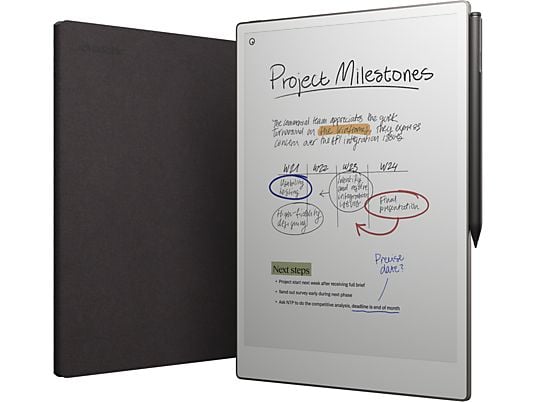
The reMarkable is a tablet—not like an iPad, but specifically designed for note-taking and reading. That’s why you can’t install any other apps on it. The screen is also unique—it uses E-Ink (electronic ink) technology. You may have seen this before in an e-reader. So while the screen isn’t suitable for media or videos, it’s perfect for writing and reading.
Thanks to the special coating on the screen, it feels like you’re actually writing on paper, not on a glass surface like on a tablet.
Do you use it in direct sunlight? No problem! The screen doesn’t glare because it has a matte finish and is perfectly visible in daylight. In the evening, it can be a bit trickier, and a lamp does help—but that’s also the case with a traditional notebook, even though some reMarkable tablets do have backlighting.
Writing Endlessly
On the reMarkable, you can create all kinds of folders to organize your work however you like. Within these folders, you can then create notebooks; think of these notebooks as physical notebooks, but with as many pages as you need and pages that can be endlessly long.
You can choose from a variety of templates, such as a blank page, lined paper, dashes, dots, and much more. You decide what works best for your project.
One feature that works really well is that you can zoom in and out using two fingers—this lets you enlarge the text you’ve written, or write in large letters and then zoom out again later. It’s incredibly handy if you have large handwriting but still want to keep an overview of the page.
In addition, you can choose from a variety of pen types and line widths. This gives you the freedom to select the type of pen that works best for your vision. The Paper Pro version, which I had the opportunity to test, also allows you to work with colors, so you can highlight text or write and draw in color.
Made a mistake, or didn’t it turn out as neat as you wanted? No problem—you can flip the pen over and easily erase, or select an entire section of the page and delete, move, or resize it.
Reading
In addition, the reMarkable is also a large-screen e-reader. If you enjoy reading books, you can use this high-quality screen to download your favorite books and view them on the device. And, since it’s a reMarkable, you can also take notes directly on top of the books. This is super handy if, for example, you want to make notes on a document or a textbook.
This works without any problems with EPUB and PDF files.
reMarkable Connect
We’ve also got professionals in mind. With the reMarkable Connect subscription, you not only get cloud storage but can also easily sync all your notebooks across your computer, smartphone, and tablet. Integrations are also available with services such as Dropbox, Google Drive, and Microsoft OneDrive, allowing you to easily import documents from shared drives, take notes, and export them back. This is especially handy when, for example, you’re taking notes during a meeting at work.
One feature that pleasantly surprised me is the handwriting-to-text conversion. Using AI, the software easily converts your handwriting into text that’s legible to everyone.
Disadvantages
So is it all positive? No, because even though you can zoom and scroll in the notebooks, the user interface isn’t really designed for poor eyesight. The text on buttons and tools is relatively small, which can sometimes make navigating the tablet quite tricky.
You should also keep this in mind: if you really want to be able to read every e-book in the world, you’re better off choosing an e-reader—the selection is simply larger there. But if you want to read a book every now and then but are mainly interested in writing, then the reMarkable is worth considering.
Who is this for?
But who is this tablet actually intended for? That’s a good question. I use it every day to take notes during meetings, keep track of tasks, and organize my work—but that’s a pretty specific use case. If you enjoy writing a lot, like to keep everything well organized, and really want to focus without distractions, then the reMarkable is a fantastic solution.
When I want to draw up a plan, I often start by jotting down the broad outlines on my reMarkable and then continue working out the details on my laptop. Being able to write by hand helps me a lot, and I find that it makes me think more creatively than when I’m typing on a keyboard.
And because I have low vision, it helps me make my handwriting clearer and more legible, and allows me to zoom in when I want to write something down in detail.
Versions
The reMarkable is available in 3 versions:
- The Paper Pro with an 11.8-inch backlit color screen
- The Paper Pro Move with a 7.3-inch backlit color screen
- The Paper Pro Pure with a 10.3-inch black-and-white screen without backlighting
There are various accessories available, such as cases, and even keyboards if you’d rather type without distractions.
